How to Fix Bufferbloat for Best Counter-Strike 2 Experience
You bought an internet plan that gets you 100 Mbps, unlimited bandwidth and a fiber connection, yet your opponents feel laggy in Counter-Strike 2, it’s mostly an issue with bufferbloat.
What is Bufferbloat
Bufferbloat is a problem where your internet starts feeling slow or laggy even though your speed looks perfectly fine on a speed test.
It happens because devices like your router or modem try to be “helpful” by storing too much data in their memory instead of sending it right away or discarding extra packets.
As those packets pile up, everything has to wait in line, so actions that need quick responses (gaming, video calls, etc) become delayed even though your connection is technically fast.
How to Test Bufferbloat
Before we fix this issue, we need to see if we are facing this issue or not. For that, you need to first visit this website to check your Bufferbloat Grade- https://www.waveform.com/tools/bufferbloat
When you click on the link above, make sure you close all other applications like Discord, Steam so your internet isn’t being used on all of that and hit the Start Test button.
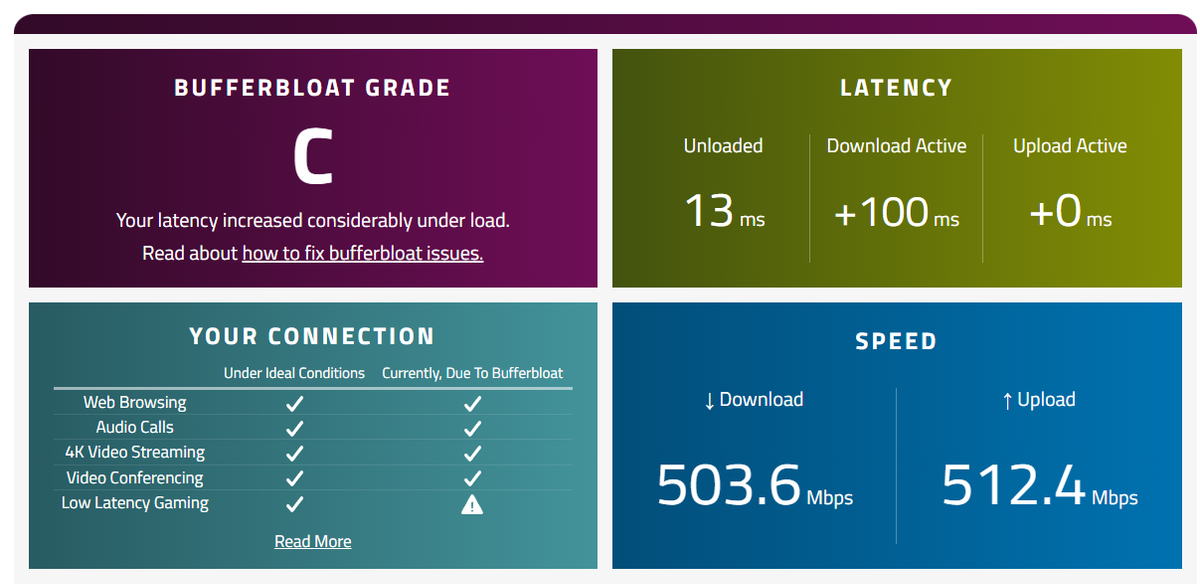
Here’s a run of my PC - I have a 500 Mbps plan, which is way too much for gaming and yet, I feel players lagging around and the de-sync feeling. If we take a look at our Bufferbloat Grade, it’s C grade which means our internet is not optimal for low latency gaming, which is a must for Counter-Strike 2.
How to Fix Bufferbloat
The solution is very simple, all you have to do is run this command with Command Prompt Ran as Administrator: Netsh int tcp set global autotuning=disabled
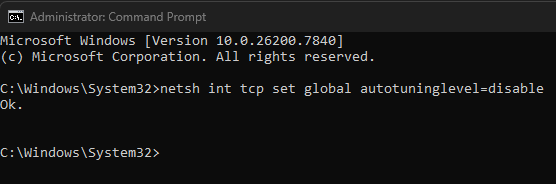
After running the above mentioned command, you need to do the test again. And here’s the result on my PC - Even though my download and upload speed went down, my Bufferbloat has greatly improved, from C to A+ Grade by just using one simple command.
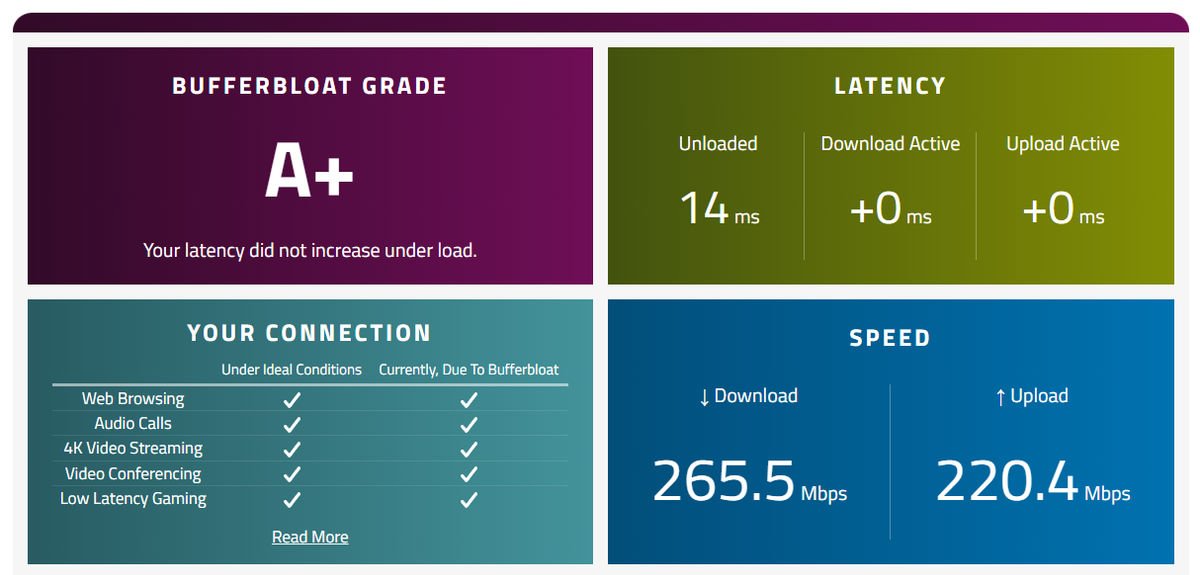
Here are a few more settings you need to make sure you are using to have great online gaming experience.
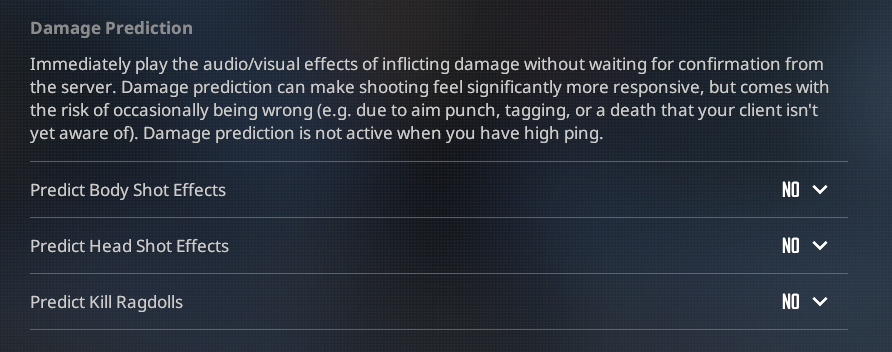
- Turn off Damage Prediction - Make sure in the Game Settings, all of these options are set to None. We do not want any sort of prediction based settings enabled in CS2.
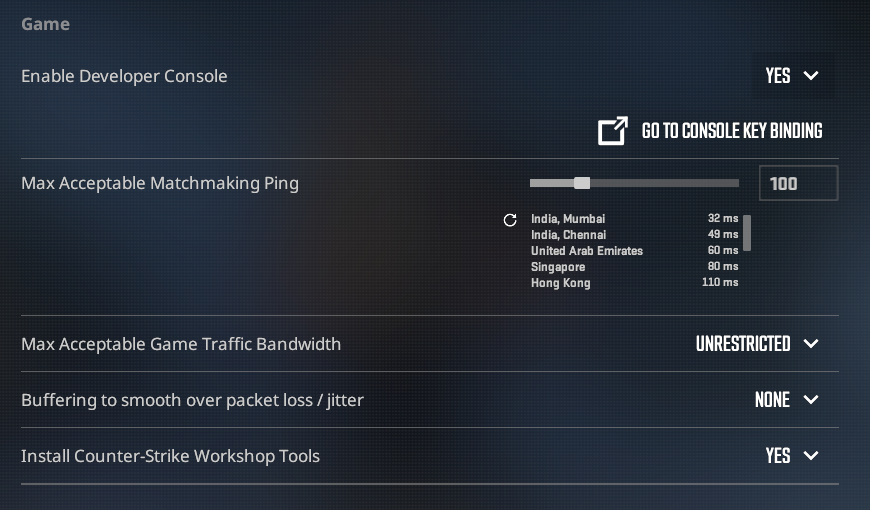
- Max Acceptable Ping and Game Traffic Bandwidth - Make sure you set the Max ping to 100, anything above that is literally unplayable in this game. And for Game Traffic Bandwidth, set it to Unrestricted.
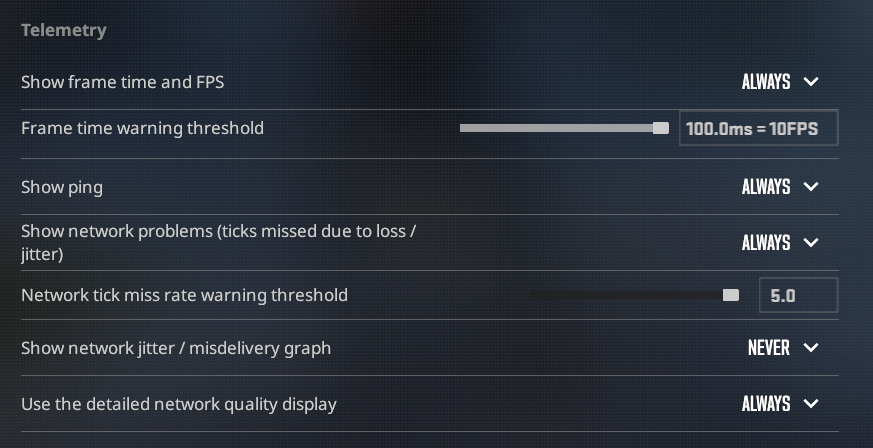
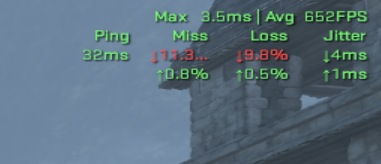
And if you want to see your Ping, and any ongoing network problem during your Counter-Strike 2 match, you need these Telemetry settings:
You can see in the screenshot below, I was facing severe Packet loss in the game and it’s easily diagnosed if Telemetry is enabled.
I hope this guide helps you improve your CS2 experience. Good Luck and Have Fun!